Indice
When a company activates a WhatsApp AI Agent to serve its customers, the first thing they usually wonder is how well it will respond. However, the most important thing is its ability to guide the user, present options, request information, resume a conversation, and determine when it is necessary to transfer the chat to a human.
A well-configured AI Agent for WhatsApp guides the conversation with useful and dynamic options, knows when to follow up, and knows when to exit the conversation. These three behaviors are solved with three key configuration aspects: Buttons, reminders, and exits (conversation transfers).
This article explains what it means to properly configure a WhatsApp AI Agent, how to set up the 3 features step by step, how to add buttons, and what can be automated.
What it Means to Properly Configure a WhatsApp AI Agent (Beyond Just Answers)
When talking about training a WhatsApp AI Agent, most companies only think about uploading information: Catalog, prices, policies, FAQs. And while this is essential, it’s only part of the configuration. The other, equally important part is deciding how that agent will behave within the conversation:
- What options it shows the customer
- When it should follow up with a message
- At what point it should exit the conversation and hand it over to a person.
This is exactly what a platform like Callbell defines as Advanced Configuration within the WhatsApp AI Agent. In this section, in one place, you define the buttons it can display, the reminders it can send, and the exits it must respect. Three different options, but they work together to make the agent feel more like a real conversation.
Buttons in Chat: A Simple Way for a WhatsApp AI Agent to Be Understood
- What Buttons Solve Most questions a company receives via WhatsApp have few possible answers: yes or no, X or Y. If a WhatsApp AI Agent answers these types of questions with a paragraph of text, it forces the customer to read and sometimes to reply in text, which isn’t helpful. When it responds with a button, the customer just has to tap it. You can enable up to 3 buttons per message, and the options can lead to web pages, digital catalogs, payment gateways, or directly to a human advisor, among others. This gives the customer an easier interaction and the agent a better understanding of what the person really needs.
- How to Decide When to Use a Button The simplest rule is this: if the expected customer response fits in one word or a short phrase, it’s better to show it as a button instead of leaving it as an open question. An open question at that point can confuse the customer, make them hesitate, and affect the flow of the conversation.
Reminders: What Keeps a Conversation with the WhatsApp AI Agent Active
- Why It’s Important to Know When to Follow Up It’s normal for a customer to start a conversation with a WhatsApp AI Agent, receive a response or a quote, and then not reply again. It’s not always because they lost interest; often, they got distracted or left it for later. Without a reminder, that conversation is simply lost. Properly configuring reminders means deciding how long to wait before following up, and what the message should say so it feels helpful and not like an annoying insistence. The Most Common Uses:
- Resume a conversation that was left unfinished, right where it stopped
- Confirm an upcoming appointment, with the option to reschedule
- Notify about a pending payment or order
- Reactivate a customer who received a quote and didn’t reply.
An important detail: WhatsApp allows you to freely message a customer within 24 hours of their last message. After that time, to resume the conversation you need to use a template previously approved by Meta. This is not a limitation of the WhatsApp AI Agent itself, it’s a general rule to prevent spam, and any scheduled reminder must comply with it.
From the Callbell platform, for example, you can configure this option by defining how many times the customer should be reminded to respond.
Message Exits: The Element Almost No One Explains and That Most Sets Apart a Good WhatsApp AI Agent
- What Message Exits Are This is probably the least known of the three elements, and the one that most distinguishes a well-configured agent from an improvised one. Exits are the conditions under which the WhatsApp AI Agent should stop responding automatically and transfer the conversation to a team member. This is not a system failure, but a deliberate decision made in the configuration.
- Why They Are So Important An agent without well-defined exits tends to fall into one of two problems: It keeps trying to handle situations it shouldn’t (a sensitive complaint, a special negotiation, a grievance) or, on the contrary, transfers everything to a person at the slightest doubt, which negates much of its value. Defining exits well avoids both extremes. Some common conditions for configuring an exit:
- The customer explicitly asks to speak to a person
- The conversation touches on a topic outside the defined scope (complaints, legal issues, special negotiations)
- The agent detects it doesn’t have the necessary information to answer confidently
- A specific business condition is met, such as a purchase amount requiring human approval.
- How This Looks in Practice In Callbell, for example, this logic is included within the Advanced Configuration of the WhatsApp AI Agent, along with buttons and reminders, precisely because all three elements are related. Through a description, the agent is told up to what point it can handle the conversation and how to summarize the context so that the human agent, upon receiving it, can save time and help the user immediately.
How to Add Buttons, Reminders, and Configure Exits in Conversations?
Buttons and reminders are configured within the AI Agent’s conversation flow. Each function plays a different role: Buttons allow you to offer options to the customer, while reminders allow you to resume a conversation when the user stops responding.
How to Add Buttons to a Conversation Using the Callbell Tool
- Step 1. Enter the AI Agent Configuration
From Callbell, access the AI Agent you want to configure and go to the conversation flow editor.
- Step 2. Create or Choose the Action Where the Buttons Will Appear
Within the flow, select the point in the conversation where the AI Agent should present different alternatives to the customer. For example:
What information do you need?
[Prices] [Hours] [Speak to a person]
- Step 3. Add the Buttons
In the action configuration, add the options the customer can select. Callbell allows you to configure up to 3 buttons per message.
- Step 4. Define What Happens After Each Button
This is the most important point. Each button can lead to a different path within the flow. For example:
Prices → show price information.
Hours → check or display hours.
Speak to a person → transfer the conversation to a human agent.
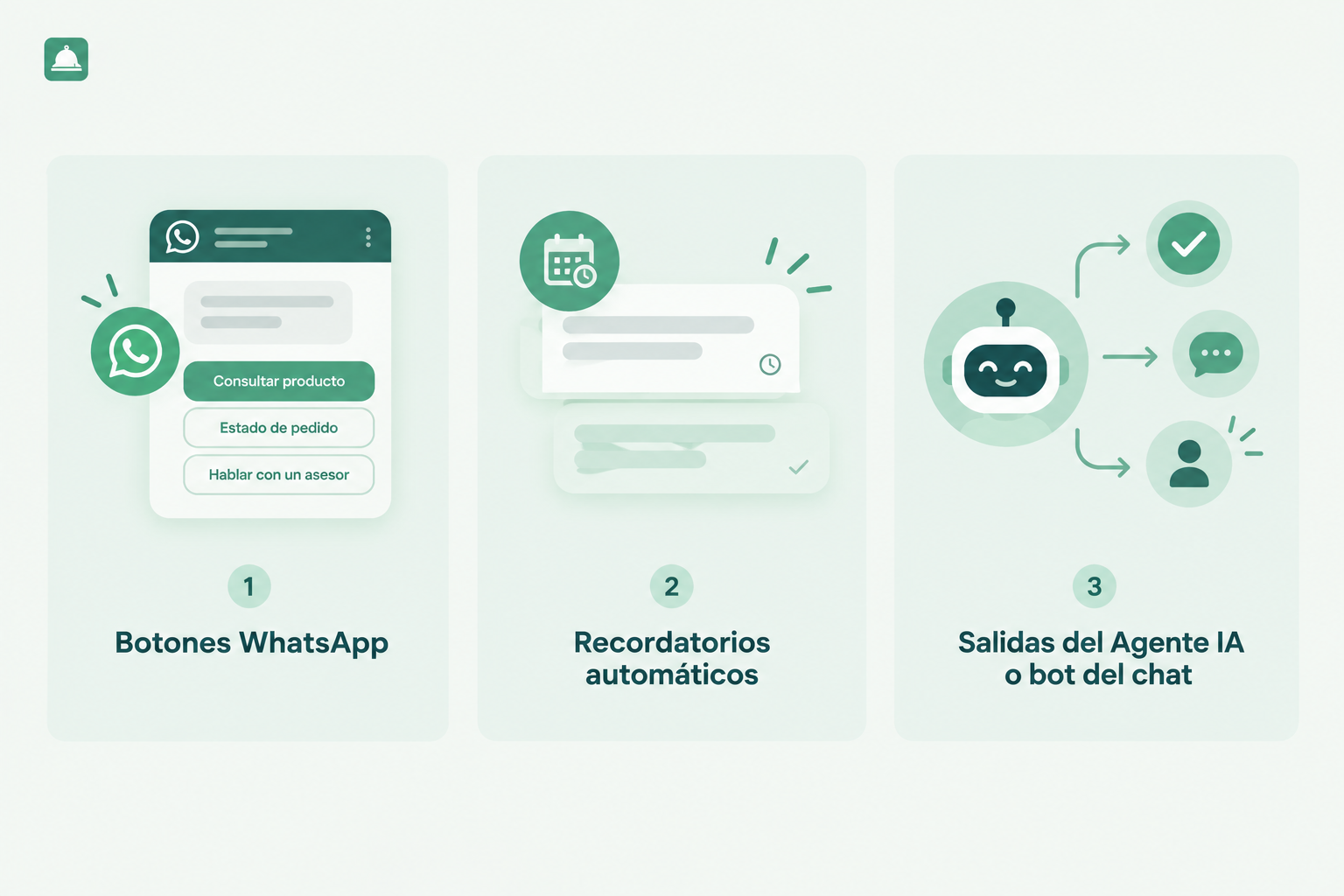
In this way, the button is not just a visual element, but also defines the next step in the conversation.
How to Set Up a Reminder with Callbell
Reminders work when the customer leaves a conversation without responding and you need to automatically follow up.
- Step 1. Identify the Point Where the Customer Should Respond
The reminder should be set up after a question or request for information that requires a customer response.
For example: Do you want to continue with the purchase?
If the customer does not respond, the flow can trigger a follow-up, depending on the selected reminder time.
- Step 2. Add the Follow-Up Action
Within the configuration of the corresponding action, set the reminder to be sent if there is no response.
- Step 3. Set the Waiting Time
Set how long the AI Agent should wait before sending the next message. In Callbell, the configurable interval for these follow-ups can range from 5 minutes to 23 hours.
- Step 4. Define What Happens After the Reminder
The follow-up should also be part of the flow. If the customer responds, the conversation continues. If they stop responding, another follow-up can be triggered or the flow can end according to the established configuration.
Callbell allows you to configure up to 10 follow-up messages in certain response actions.
How to Configure Exits for an AI Agent in Callbell?
Exits allow you to define what happens after the AI Agent stops managing a conversation. For example, a conversation may end because the goal was reached, the customer asked to speak to a person, or an error occurred.
- Step 1. Add the AI Agent Flow
Within the bot flow editor, you must add the AI Agent Flow action. Once this is done, you should:
- Select the AI Agent you want to use.
- Click Save.
When you save the action, Callbell automatically adds the exit reason nodes to the flow.
- Step 2. Identify the Available Exits
By default, the flow includes four exits:
Goal achieved: The AI Agent determines it has fulfilled the configured goal.
Human request: The customer asks to speak to a person.
No response: The customer stops responding after the configured follow-ups.
Error: An unexpected error occurs or AI credits run out.
These exits work as continuation points in the flow. That is, it’s not enough for the exit to exist: You must define what action should be executed next.
- Step 3. Define What Happens After Each Exit
For example:
- If the exit is “Human request”, you can continue the flow with an action that assigns the conversation to a human agent or team. The flow would be: AI Agent → Human request → Assignment to team/agent → Human assistance
- On the other hand, if the exit is “Goal achieved”, the flow could continue with a conversation closure action or another step defined by the company.
Callbell’s documentation recommends assigning the conversation to a team or agent when the human request exit is triggered.
- Step 4. Add Additional Exits When Necessary
In addition to the four default exits, Callbell allows you to add up to three optional exit reasons:
- User not interested
- Frustrated user
- AI credit wallet exhausted
Exits work as a kind of decision point within the flow: They determine which path the conversation should take when the AI Agent stops managing it.
Important: In Callbell, the “No response” exit already includes automatic follow-ups. By default, 2 follow-up messages are sent at 5-minute intervals, but this time can be changed from Advanced Settings.
How to Know Which Function Each Conversation Needs
Before adding buttons, reminders, or transfers, it’s best to analyze the real process a customer follows:
Question | Helps Define |
What does the customer need to choose? | Buttons |
What information must they provide? | Questions |
At what point might they leave? | Follow-ups |
When do they need a person? | Transfer |
When does the process end correctly? | Goal achieved |
What happens if something fails? | Error route |
What if they’re not interested? | Specific exit |
What if they’re frustrated? | Specific exit |
How These 3 Features Look in a Real Conversation
A customer messages a clinic to book an appointment.
- The WhatsApp AI Agent asks the patient for their ideal date and time of day.
- Once it has the information, it shows a list with the best available times for the customer to choose the best option: Buttons.
- A day before the appointment, the same agent sends a message asking if the appointment is still on, with two simple options to confirm or reschedule: reminder + button.
- If at any point the customer writes something outside that process, for example a complaint about a previous appointment, the agent recognizes that the topic is not within its scope and transfers the conversation to a team member, with the full history available: exit. No one had to be monitoring in real time, and the customer never felt like they were talking to a rigid system.
Common Mistakes When Configuring a WhatsApp AI Agent with Buttons, Reminders, and Exits
- Adding buttons with repeated or out-of-context options, which ends up confusing more than helping.
- Setting up generic reminders that don’t resume the real context of the conversation, making them feel like spam or forcing the agent to reread the conversation to understand.
- Not defining clear exits, letting the agent try to handle situations that should go straight to a person.
- Forgetting the 24-hour rule when scheduling a reminder, and trying to send it without an approved template after that time, putting the account and its validity at risk.
- Not updating or modifying resources, leaving documents, data, or policies that have expired, which can harm a potential purchase or generate complaints and dissatisfaction.
Quick Checklist to Configure a WhatsApp AI Agent with Buttons, Reminders, and Exits
- Identify which business questions have simple, short answers (these are the best candidates for buttons)
- Use dropdown lists when there are more than three options to show
- Define how long to wait before sending a follow-up reminder
- Schedule reminders for appointments, payments, or orders with a set date
- Write down what the exits are: Which topics and situations should always go to a person
- Periodically review if the configured exits still make sense as the business changes
How to Avoid Reminders Being Intrusive?
A good reminder should:
- Maintain the context of the conversation.
- Be brief.
- Explain why the contact is being resumed.
- Make it easy for the customer to continue.
- Respect the rules applicable to the channel and commercial communications.
It’s not the same: “Hi, are you still there?” as:
“We’re still waiting to confirm the type of service you need. If you want to continue with the quote, we can do it from here.”
The second message recovers the context and makes it easier for the customer to resume the process.
How to Measure a WhatsApp AI Agent’s Customer Service?
Setting up automation is not the last step. It’s also necessary to analyze what happens with the conversations managed. Some useful metrics are:
- Number of conversations managed.
- Messages sent.
- Average messages per conversation.
- Exit reasons.
- Conversations transferred to humans.
- Conversations that end with the goal achieved.
- Conversations with no response.
- Cost associated with AI usage.
Callbell has specific analytics for AI Agents that let you check managed conversations, messages sent, costs generated, exit reasons, and conversation history, with filters by date, agent, channel, and exit reason.
How to Design an Automated Conversation from Start to Finish?
A simple way to start is to divide the journey into six moments:
- Start: What does the customer need to know when the conversation begins?
- Guidance: Are there options that can be presented as buttons?
- Resolution: What can the AI Agent resolve directly?
- Follow-up: What should happen if the customer stops responding?
- Transfer: In which situations should a person intervene?
- Completion: What does it mean for the conversation to end correctly?
This model allows you to build automation that doesn’t depend solely on individual answers, but on a complete conversational journey.
What Can a Company Automate with a WhatsApp AI Agent?
The features of an AI Agent can be applied to different processes.
- Customer service
- Sales
- Lead qualification
- Bookings
- Support
Conclusion
A WhatsApp AI Agent doesn’t have to be limited to answering messages. To be part of a truly structured customer service operation, it must be able to accompany the customer through different stages of the conversation.
Buttons help guide decisions. Reminders allow you to resume pending conversations. Exits determine what happens when a goal is reached, there’s no response, an error occurs, or the customer needs human assistance.
That’s why automating customer service with AI is not about making artificial intelligence answer everything. It’s about defining what it can solve, what it should do next, when it should follow up, and when it should hand over control to a person.
Configuring a WhatsApp AI Agent with this complete vision is what separates a business that automates its customer service well from one that just installed another chatbot.
Here we help you create, customize, train, and implement your AI agent on WhatsApp.

About the author: Hello! I am Alan and I am the marketing manager at Callbell, the first communication platform designed to help sales and support teams to collaborate and communicate with customers through direct messaging applications such as WhatsApp, Messenger, Telegram and Instagram Direct